Update a technician ETA from VixxoLink Mobile when schedules change in the field. Keep arrival times accurate so customers and Vixxo have real-time visibility before your technician times in.
*Update the ETA as soon as you know the schedule has changed — back-office staff can also update ETAs from the VixxoLink dashboard.
*If you are stuck and need assistance, please call 866-988-5376 — Option 1 for general service provider support, Option 2 for quotes and invoicing, Option 3 for VixxoLink technical support, Option 4 for dispatch and service-request questions — or click the Submit a Ticket button at the top right.
Before You Update an ETA
- You can update an ETA from mobile after a service request has been accepted.
- Changes sync immediately to the service request in VixxoLink.
- For back-office ETA updates, see Updating an ETA.
Update an ETA on Mobile
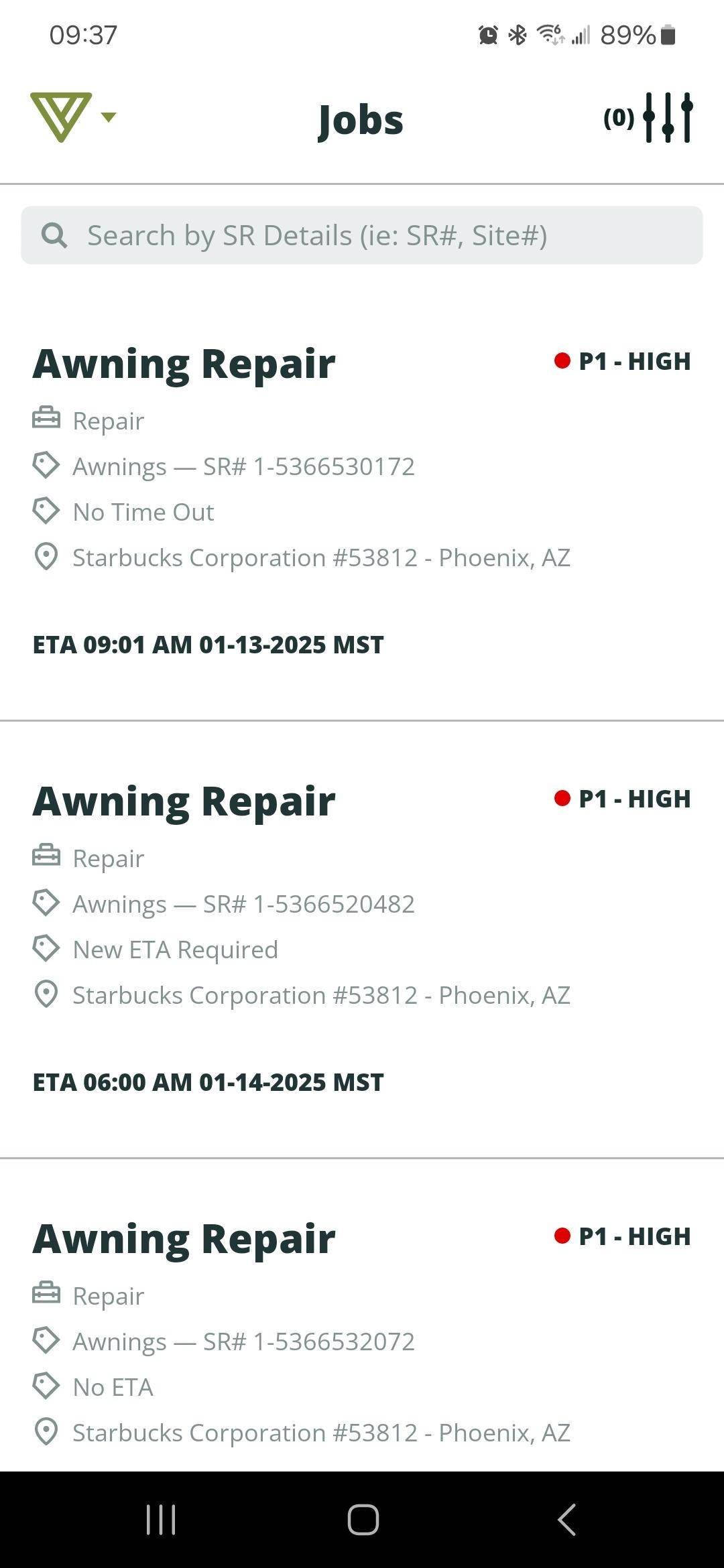
- Open the VixxoLink app and locate the service request — scroll the list, use the search bar, or apply filters at the top right.
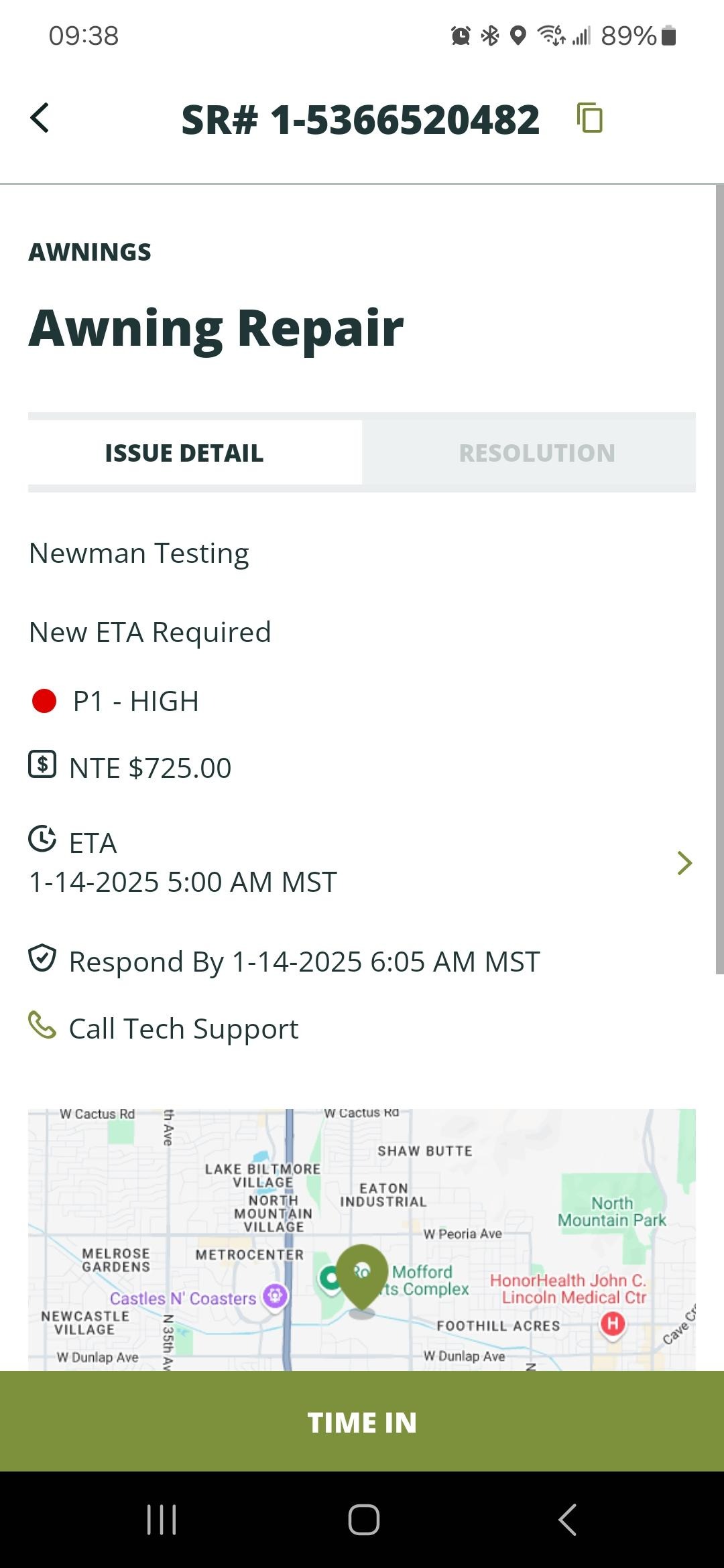
- Tap the service request to open it, then tap the ETA row (arrow on the right).
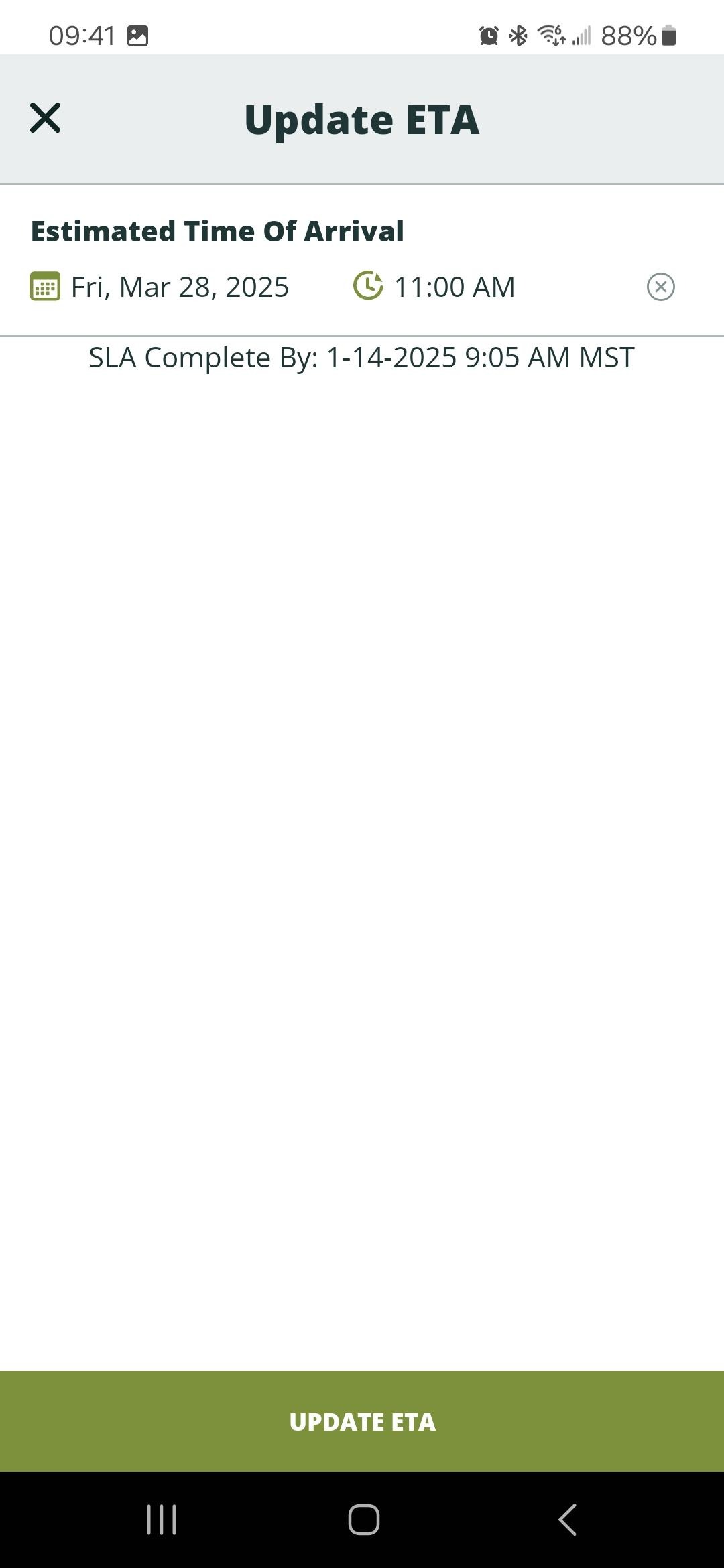
- Tap Date and/or Time to update the value, then tap Update ETA.
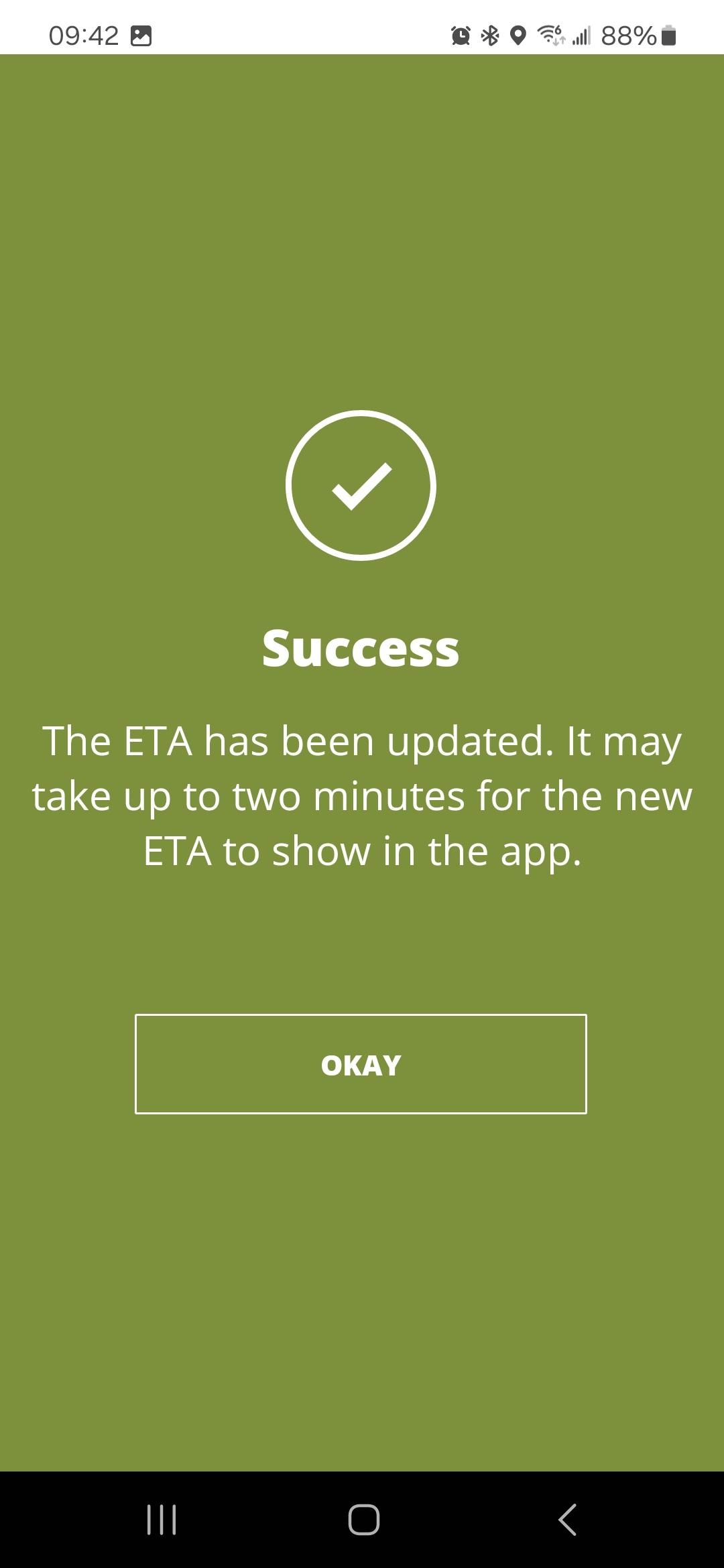
- A confirmation indicates the ETA was updated. Tap Okay.
Related articles:
- Updating an ETA
- Accepting/Declining a Service Request and Adding an ETA
- Timing In/Out
- Mobile - Completing Preventative Maintenance
Was this article helpful?
That’s Great!
Thank you for your feedback
Sorry! We couldn't be helpful
Thank you for your feedback
Feedback sent
We appreciate your effort and will try to fix the article