Enter Problem, Cause, and Resolution (PCR) codes in VixxoLink Mobile when required on a service request. Accurate PCR codes help Vixxo and customers understand what failed, why, and how it was fixed.
*PCR is required on some service requests based on customer and line-of-service rules. Complete PCR before finishing resolution and signing off.
*If you are stuck and need assistance, please call 866-988-5376 — Option 1 for general service provider support, Option 2 for quotes and invoicing, Option 3 for VixxoLink technical support, Option 4 for dispatch and service-request questions — or click the Submit a Ticket button at the top right.
Before You Enter PCR Codes
- PCR appears under the Resolution tab when required for the job.
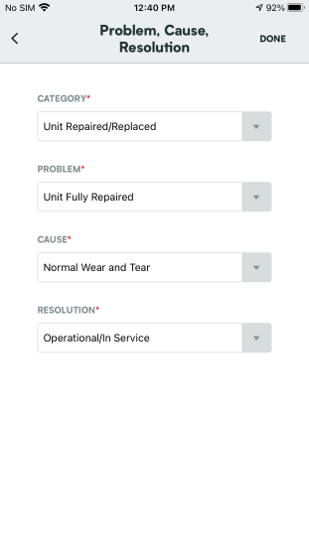
- Select the option that best matches the situation for each of the four PCR fields.
- After saving PCR, continue with the remaining resolution steps on the service request.
Enter PCR Codes on Mobile
- Under the Resolution tab, tap Problem, Cause, Resolution.
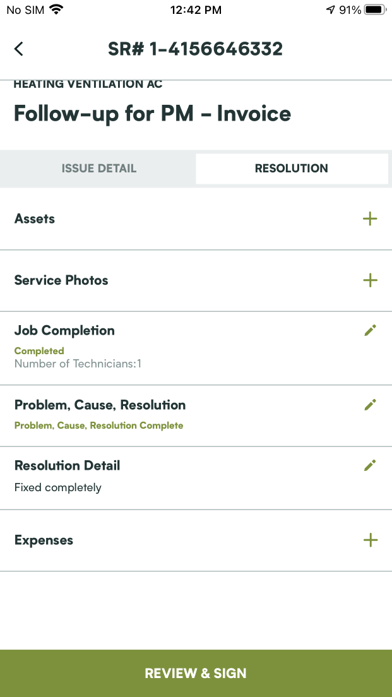
- Review the four fields on the Problem, Cause, Resolution page. Select the option that fits this service request for each field, then tap Done.
- Continue completing the remaining steps on the service request.
Related articles:
- Mobile - Completing Preventative Maintenance
- Service Request Documentation Requirements
- Timing In/Out
- Step by Step - Work Order Process
Was this article helpful?
That’s Great!
Thank you for your feedback
Sorry! We couldn't be helpful
Thank you for your feedback
Feedback sent
We appreciate your effort and will try to fix the article