Complete preventative maintenance (PM) service requests in VixxoLink Mobile by following worksteps, documenting assets, and finishing all required resolution fields. PM jobs follow the same mobile workflow as repair jobs, with additional workstep and survey requirements.
*Time in before starting work. Complete every workstep, asset entry, and survey before timing out and signing off.
*If you are stuck and need assistance, please call 866-988-5376 — Option 1 for general service provider support, Option 2 for quotes and invoicing, Option 3 for VixxoLink technical support, Option 4 for dispatch and service-request questions — or click the Submit a Ticket button at the top right.
Before You Start PM Work
- Time in when you arrive on site — the Resolution tab becomes available after timing in.
- Complete all listed worksteps before moving to assets and final resolution.
- Some PM jobs require a customer survey — finish and submit the survey in one session; closing early requires starting over.
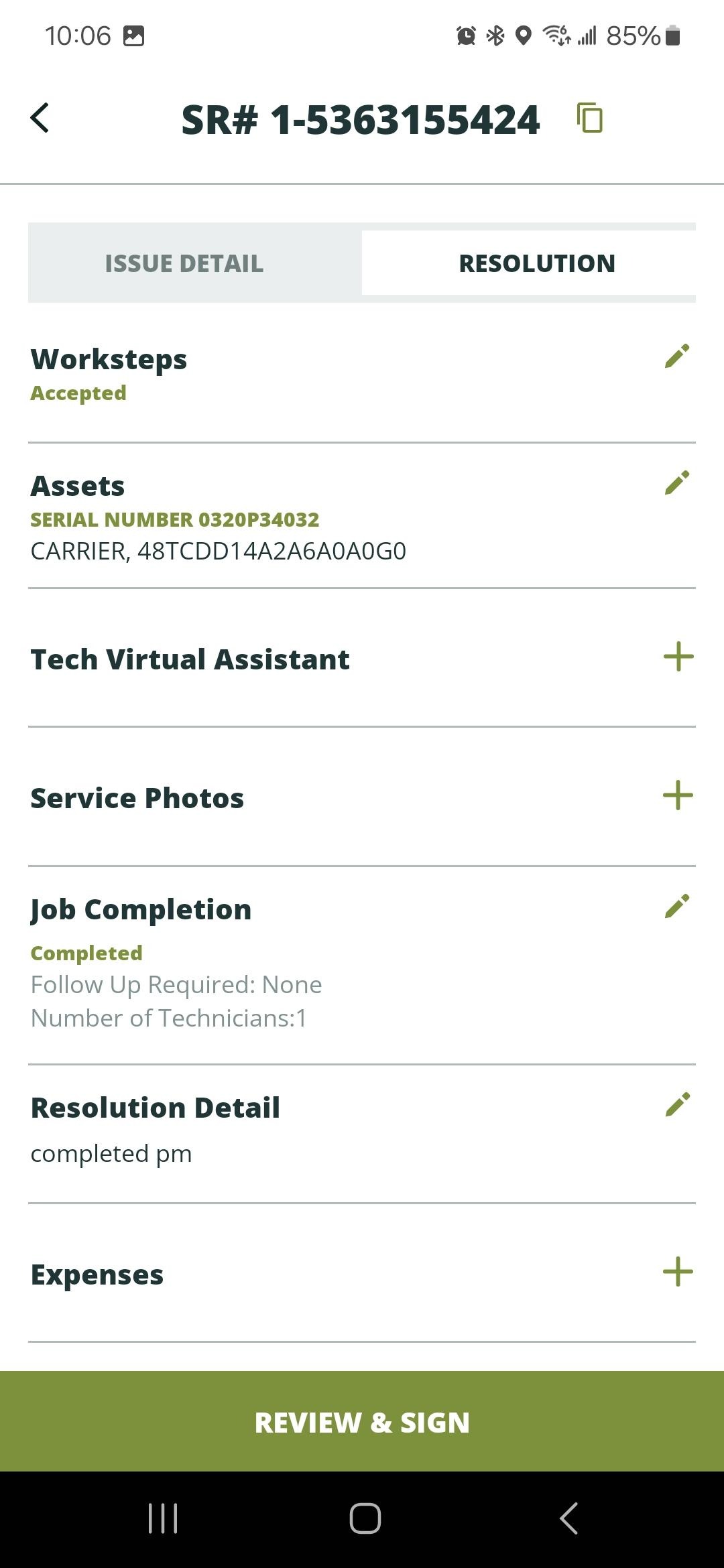
- Finish with service photos, job completion details, resolution notes, expenses, and Review & Sign — same as a standard service request.
Complete Preventative Maintenance on Mobile
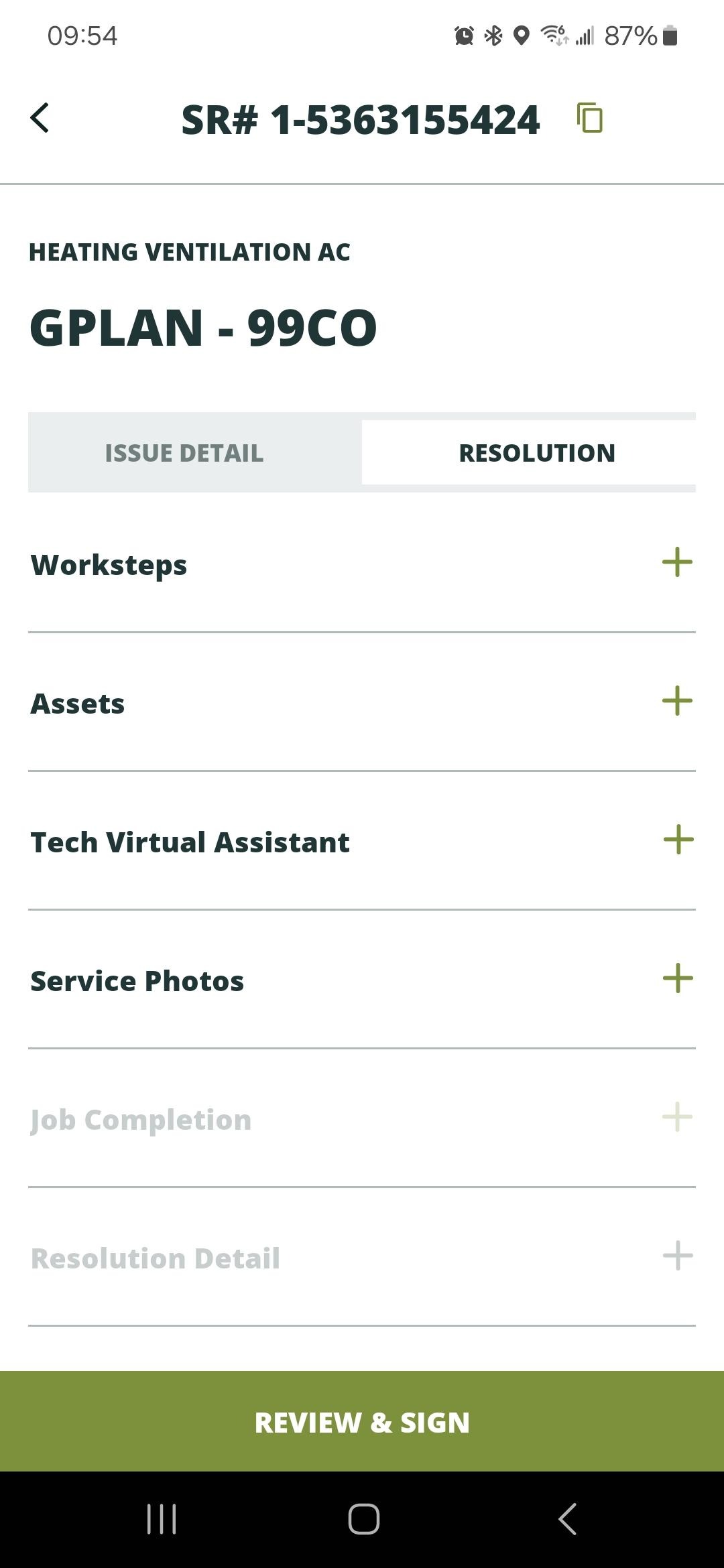
- After timing in, open the Resolution tab and tap Worksteps.
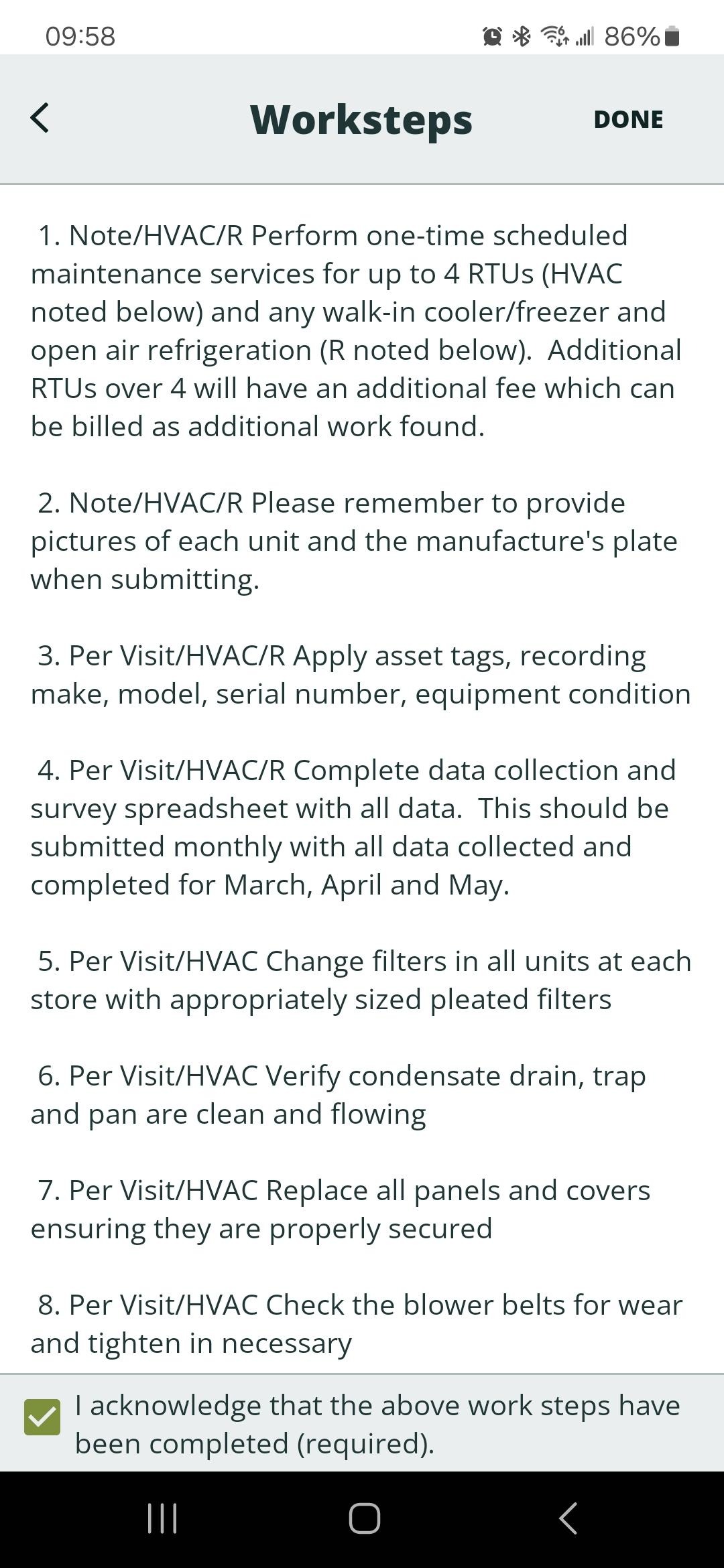
- Review each workstep and confirm completion. Check the acknowledgment box at the bottom and tap Done.
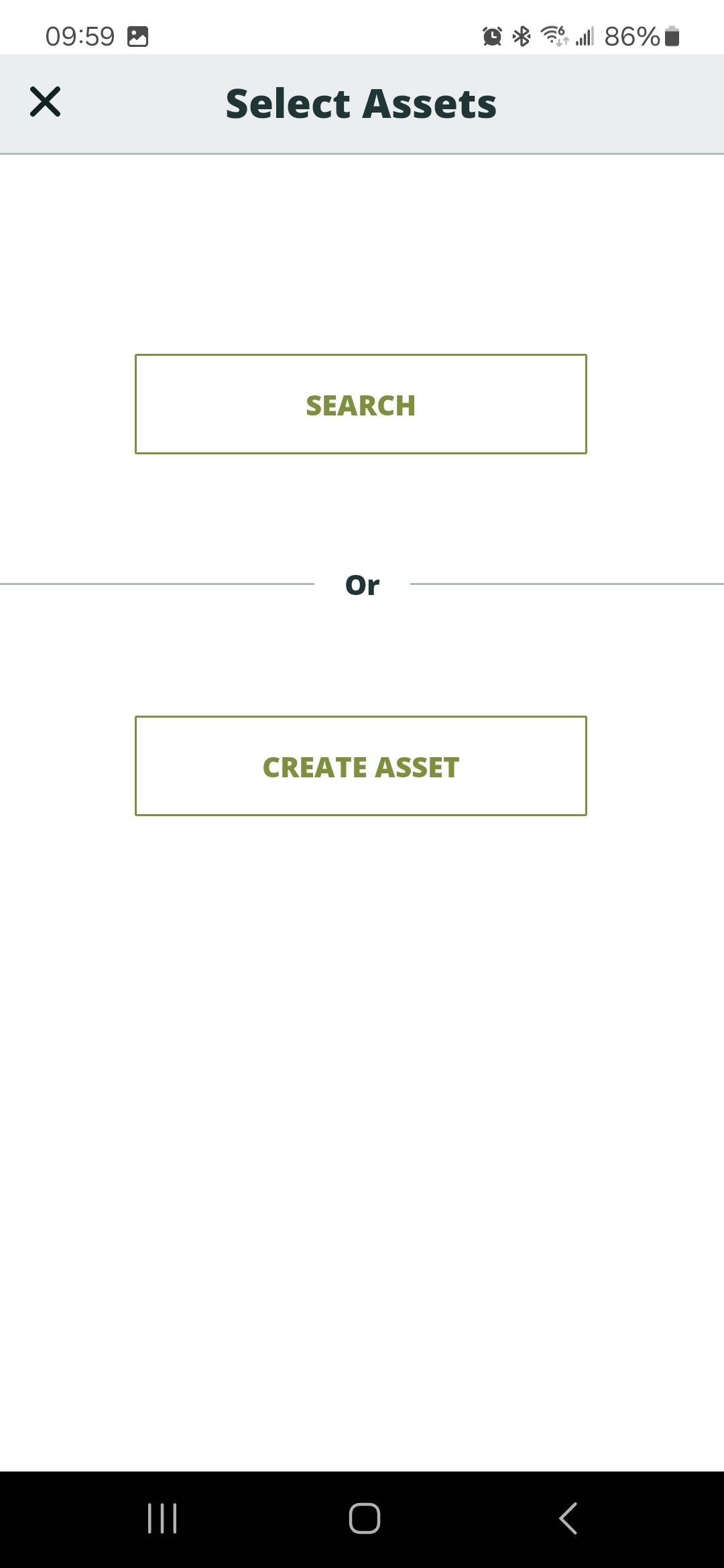
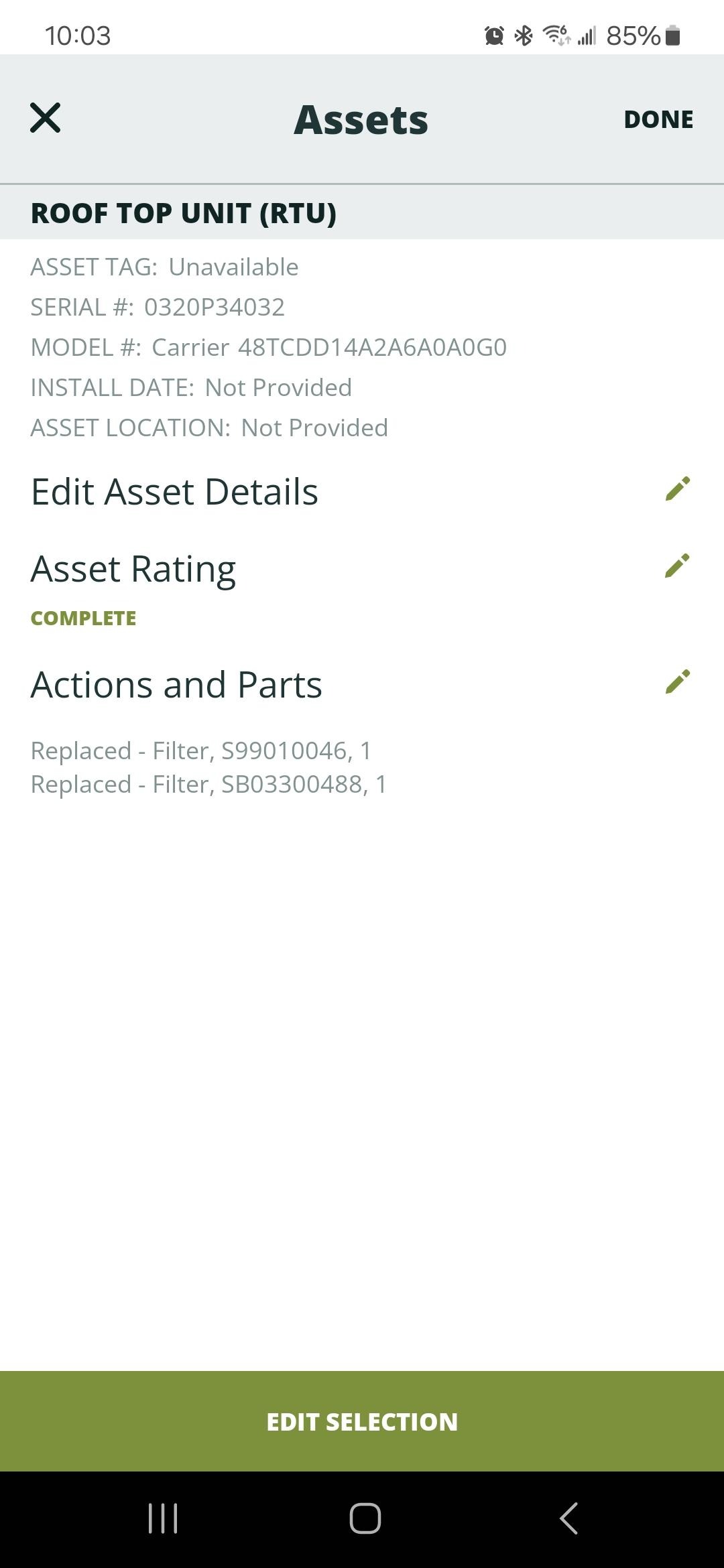
- Tap Assets, then Search or Create Assetto add information for the asset you worked on.
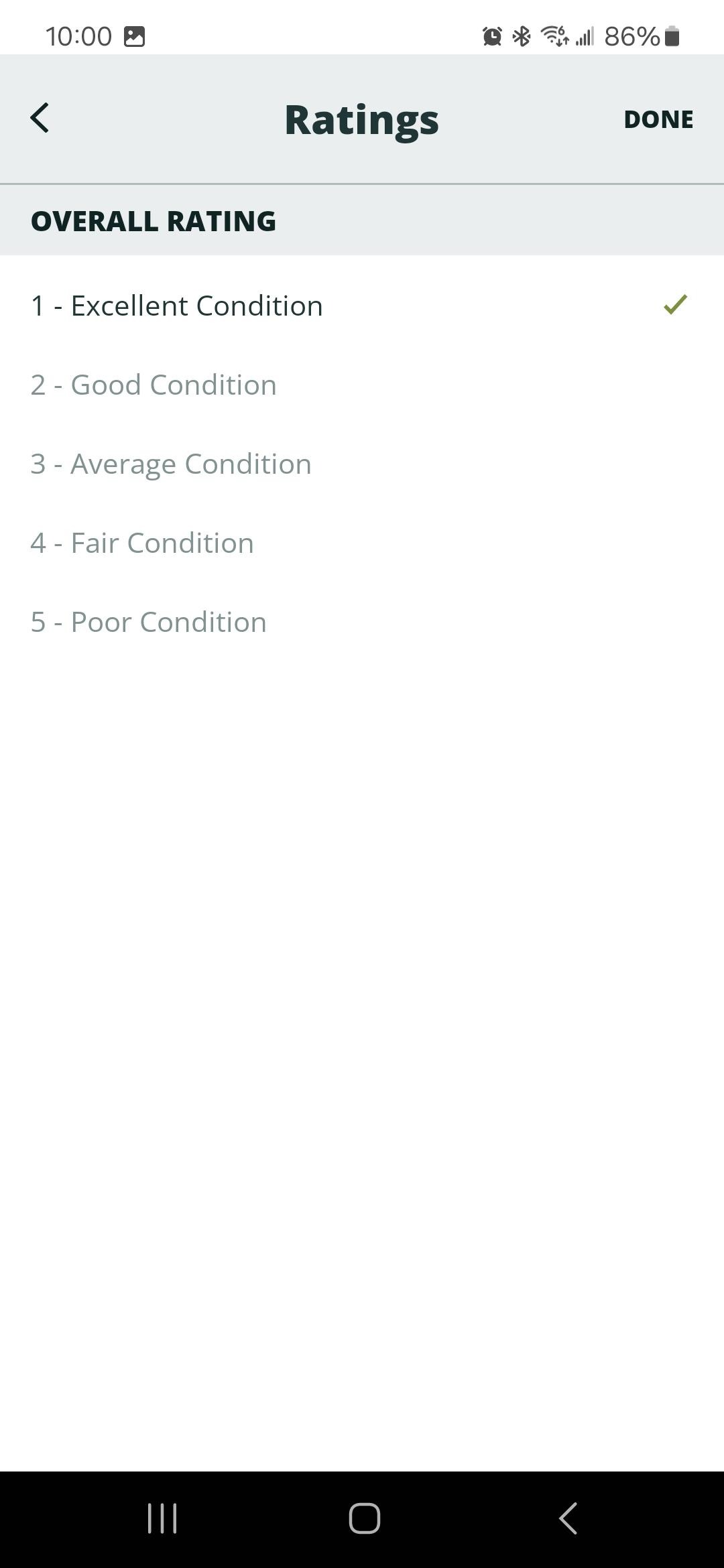
- Tap Asset Rating, select the asset condition, and tap Done.
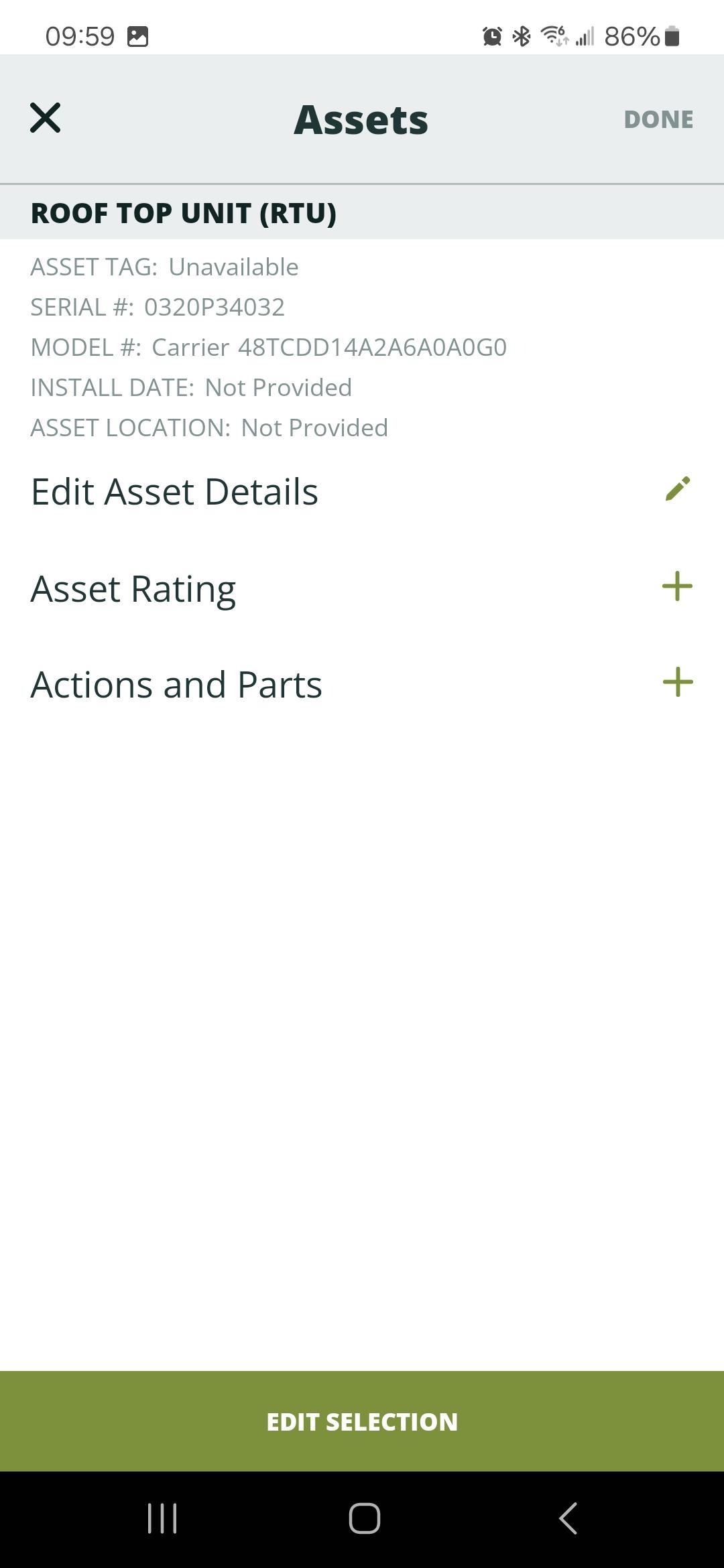
- Tap Action and Parts. Select the action performed and add any parts used — same as a regular service request. Review the Asset page and tap Donewhen accurate.
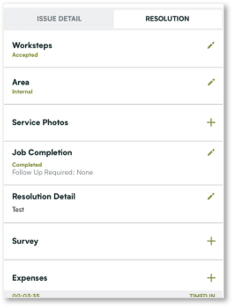
- If a survey is required, Surveyappears on the Resolution tab — tap to open it.
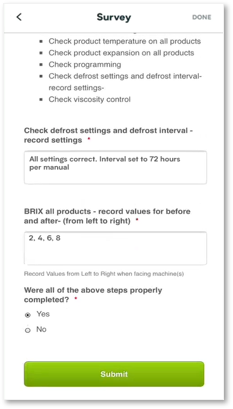
- Answer all survey questions and tap Submit at the bottom. *Closing before the survey is completed and submitted will require starting over.
- Complete Service Photos, Job Completion, Resolution Detail, and Expenses as on a regular service request. Proceed to Review & Signto finalize the PM job.
Related articles:
- Mobile - Problem Cause Resolution (PCR) Codes
- Service Request Documentation Requirements
- Timing In/Out
- Step by Step - Work Order Process
Was this article helpful?
That’s Great!
Thank you for your feedback
Sorry! We couldn't be helpful
Thank you for your feedback
Feedback sent
We appreciate your effort and will try to fix the article