Submit accurate quotes in VixxoLink so repair work can be approved and scheduled promptly. This guide walks through building and submitting a quote from the dashboard through final submission.
*If there was an initial site visit, make sure your technician documented the service request in VixxoLink Mobile before you leave — time in/out, photos, resolution notes, and Review & Sign when required. Complete on-site documentation simplifies quoting and reduces rejections.
*If you are stuck and need assistance, please call 866-988-5376 — Option 2 for help submitting a quote, Option 3 for VixxoLink technical support, Option 4 for dispatch/service-request questions — or click the Submit a Ticket button at the top right.
Before You Submit a Quote
Important points about Vixxo quotes:
- Quotes must be submitted within 24 hours of the initial site visit.
- A Vixxo quote is a time-and-materials estimate, not a fixed-price quote. It is subject to the service request NTE (Not-To-Exceed) cap.
- Quotes above NTE or with rates above contract may require customer or Vixxo approval before work proceeds.
- Attach the signed work ticket, before/after photos, and your in-house quote PDF when submitting to avoid rejection.
See Service Request Documentation Requirements for on-site documentation standards.
1. Open the Service Request and Start the Quote
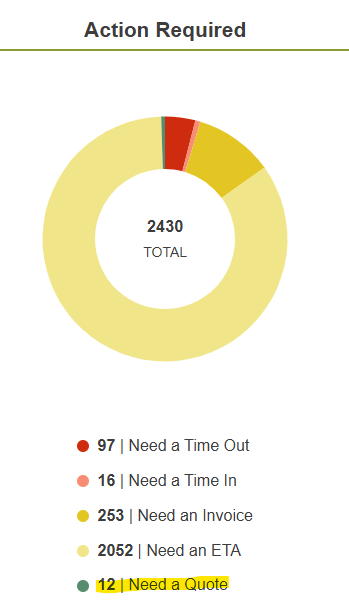
- From the VixxoLink dashboard, click Need a Quote to view all jobs requiring a quote.
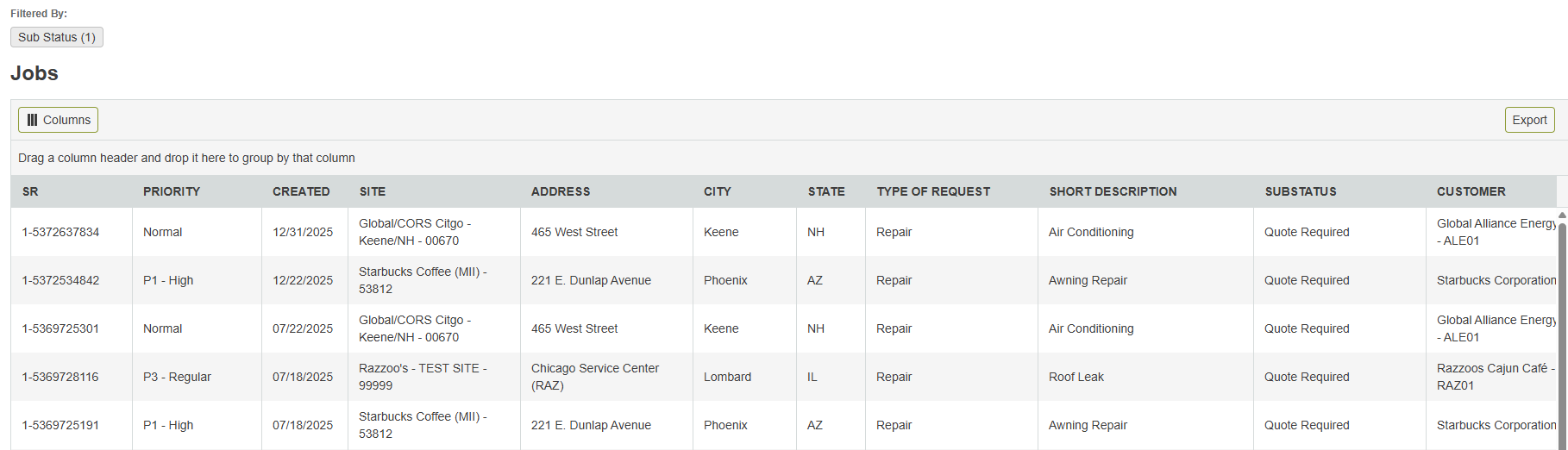
- Review the list and click the row for the service request you need to quote.
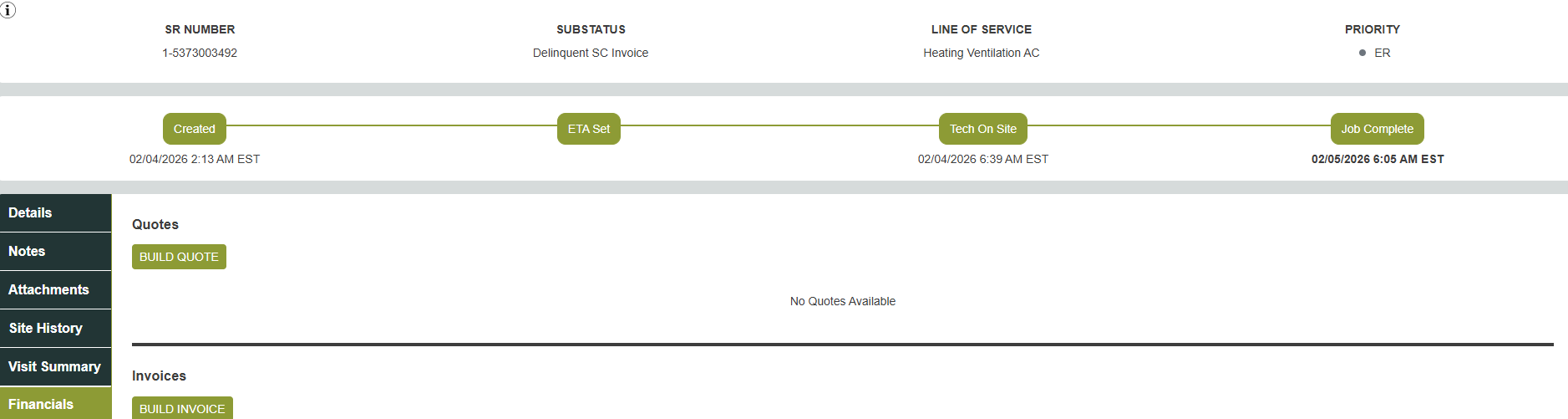
- Open the service request, click Financials on the left, and click Build Quote.
2. Work Scope
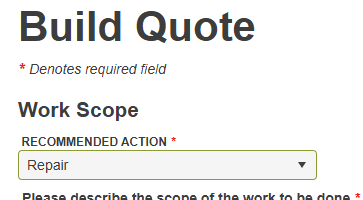
- In the Work Scope section, select the appropriate action: Repair or Replace.
- Enter a detailed description of the proposed scope of work — issue found, recommended repair/replacement, and expected outcome.

3. Incurred Items (Initial Visit Charges)
Use Incurred Items to bill charges from the initial diagnostic or site visit before quoting return-work costs.
- Labor — The system auto-populates labor based on time in/out, number of technicians, and your contract rates. Review for accuracy. If you change rates using the hammer icon, enter detailed notes in the Reason box. Unexplained rate changes trigger AP review.

- Trip charge — The trip charge auto-populates from your contract rates. Contact your Service Provider Manager to update travel rates for future work in that area if ongoing trip issues occur.

- Assets and parts (if required) — If the line of service requires an asset, VixxoLink will prompt you to add the asset before adding parts. Click + Add Asset when required, or + Parts when no asset is needed. *Floors, toilets, walls, and similar building elements are not considered assets.
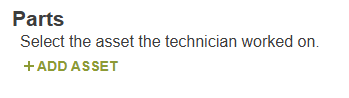
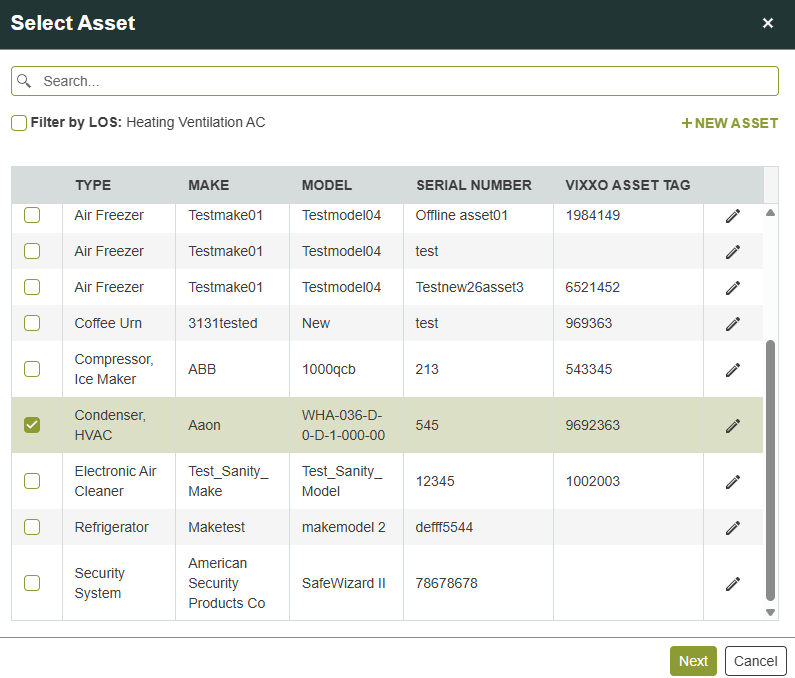
- In the Add Assets window, select the appropriate asset. If it is not listed, uncheck Filter by LOS and search. Click Next.
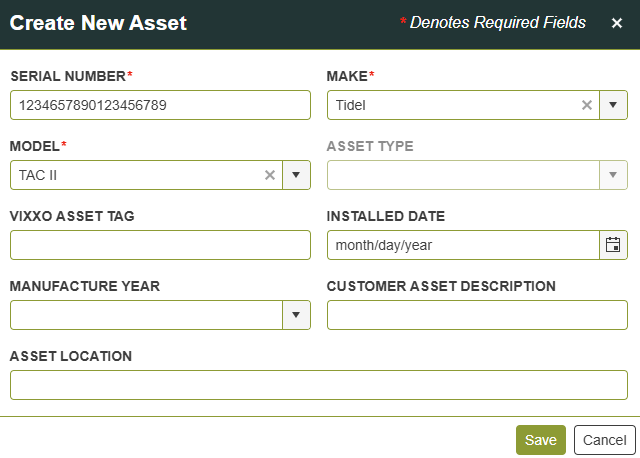
- If the asset is still not found, click New Asset, enter the asset information, and click Save.
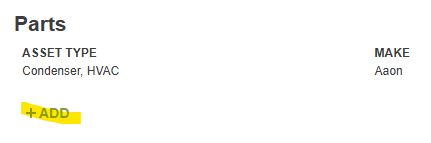
- After the asset is added, click + Add under Parts to include parts used on the initial visit. Skip to Expenses if no parts apply.
- When adding parts, uncheck Filter by LOS and search if needed. If the part is not found, click Request It Here, complete the form, and submit — Vixxo will notify you when the part is available. Otherwise select the part and click Next.
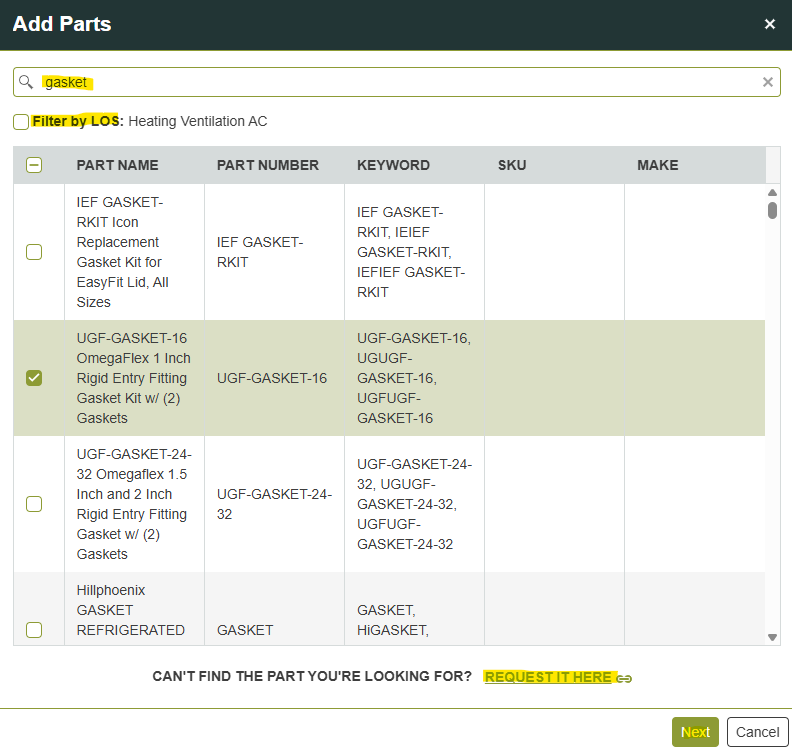
- On the quote page, select the action performed (e.g., Replaced), enter quantity, and enter the unit price billed to Vixxo (not your cost). If the price exceeds the suggested amount, accept the suggested price or enter notes — billing above suggested price triggers audit of all parts and labor on the request.

- Expenses — Under Expenses, click + Add for incurred expenses (equipment fee, rental, etc.). Search, select, and save the expense.
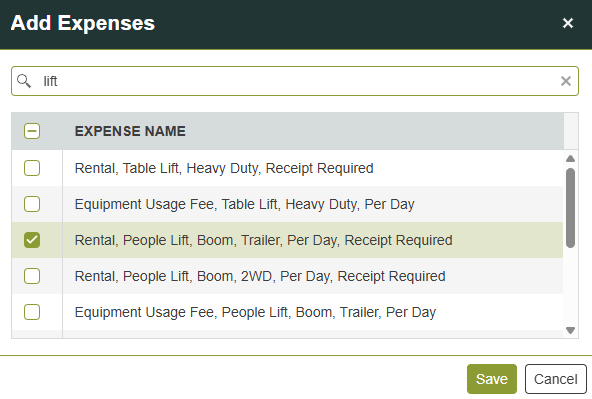
- Enter quantity and unit price for each expense. Repeat for additional expenses.

- Verify the Incurred Total on the right before moving to Proposed Items.

4. Proposed Items (Return Visit Estimate)
Use Proposed Items to estimate labor, trip, parts, and expenses for the return visit or follow-up repair work.
- Enter the estimated time the technician will spend on site for the proposed work. If you adjust labor rates with the hammer icon, add detailed notes in the Reason box.

- If needed, click + Add for a proposed return trip charge. Trip charges auto-populate from contract rates. Contact your Service Provider Manager to update travel rates for the area if needed.

- Add assets, parts, and expenses for the proposed work using the same steps as Incurred Items above: + Add Asset or + Parts, search or create assets, enter action/quantity/unit price, and add expenses as needed. *Floors, toilets, walls, and similar building elements are not considered assets.
5. Tax, Attachments, and Submit
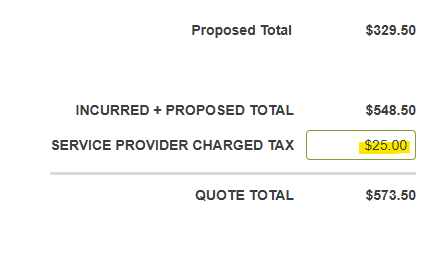
- If applicable, enter Service Provider Charged Tax and review all quote totals.
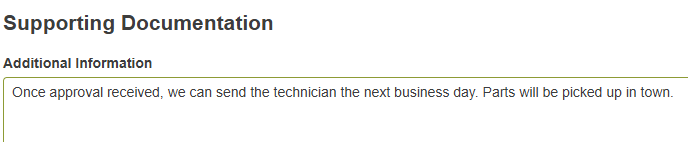
- Under Additional Information, enter any other details relevant to the quote (lead times, special access requirements, warranty notes, etc.).
- Click Upload to attach your in-house quote PDF, required receipts, the signed work ticket, and before/after photos from the initial visit. Missing documentation commonly causes quote rejection.

- Click Review Quote at the bottom right.
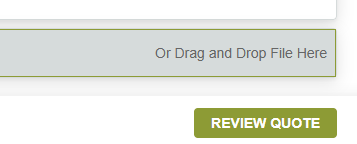
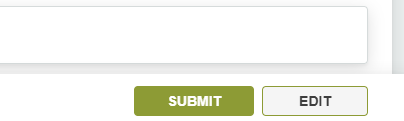
- Review all entered information. If correct, click Submit to send the quote to Vixxo. If changes are needed, click Edit. After submission, a confirmation message appears and you return to the service request details page.
Quick Reference — Quote Submission Checklist
| Step | What to verify |
|---|---|
| On site (before quoting) | Time in/out, photos, resolution notes, Review & Sign completed in VixxoLink Mobile |
| Timing | Quote submitted within 24 hours of initial visit |
| Work Scope | Repair or Replace selected; detailed scope description entered |
| Incurred Items | Initial-visit labor, trip, parts, and expenses match time on site and contract rates |
| Proposed Items | Return-visit labor, trip, parts, and expenses reflect estimated follow-up work |
| Rates | Contract rates used; hammer-icon changes include Reason notes |
| NTE | Quote total within approved NTE or NTE increase requested before work |
| Attachments | Signed work ticket, before/after photos, in-house quote PDF uploaded |
| Submit | Review Quote → Submit; watch for confirmation message |
Related articles:
- Service Request Documentation Requirements
- Creating an Invoice in VixxoLink
- Service Provider FAQs
- Timing In/Out
- Step by Step - Work Order Process
Was this article helpful?
That’s Great!
Thank you for your feedback
Sorry! We couldn't be helpful
Thank you for your feedback
Feedback sent
We appreciate your effort and will try to fix the article